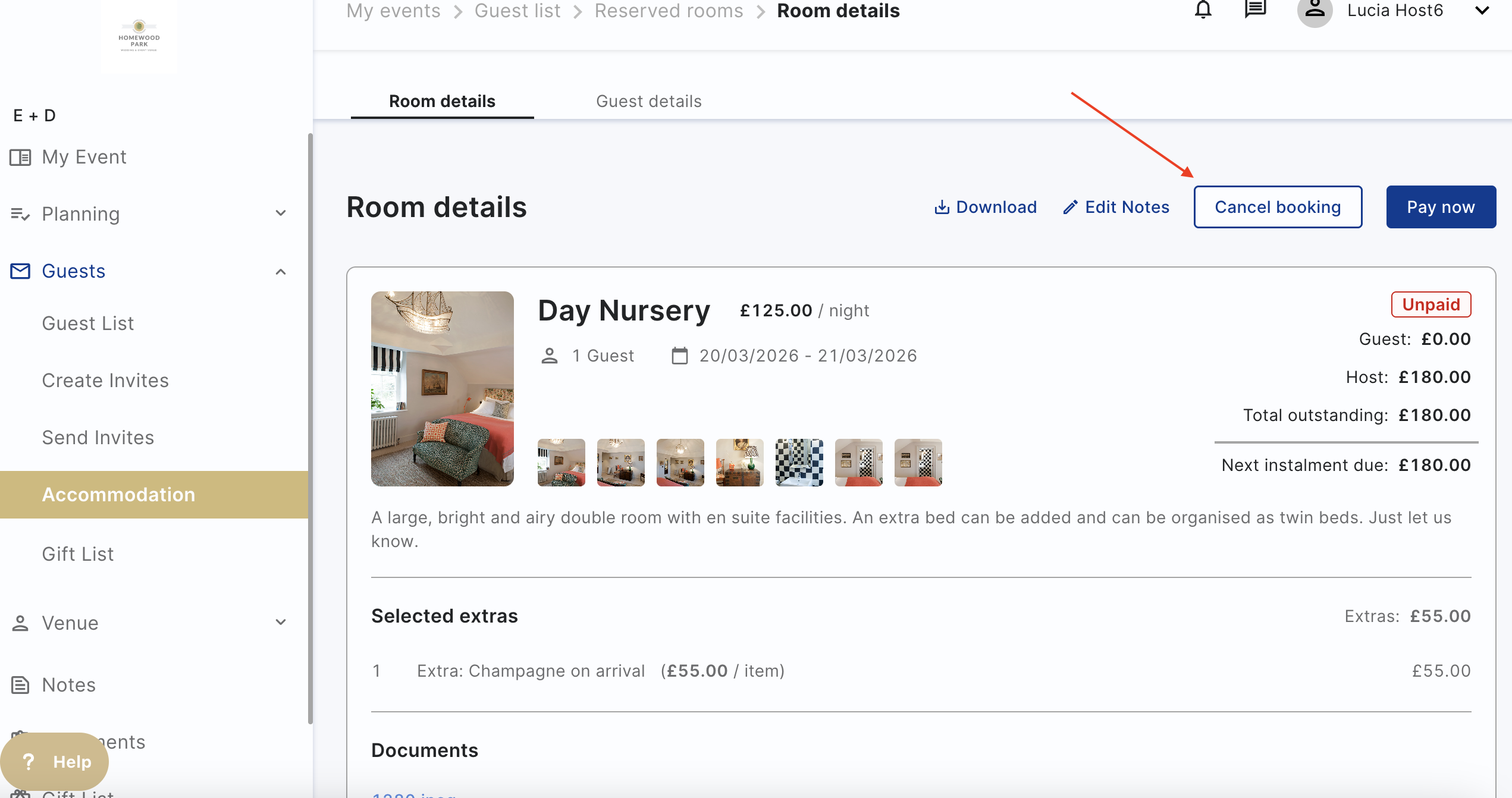
Accommodation - How to View & Book Rooms
Hostology allows you to book and manage accommodation for your event, if your venue offers it.
Click on Guests then on Accommodation
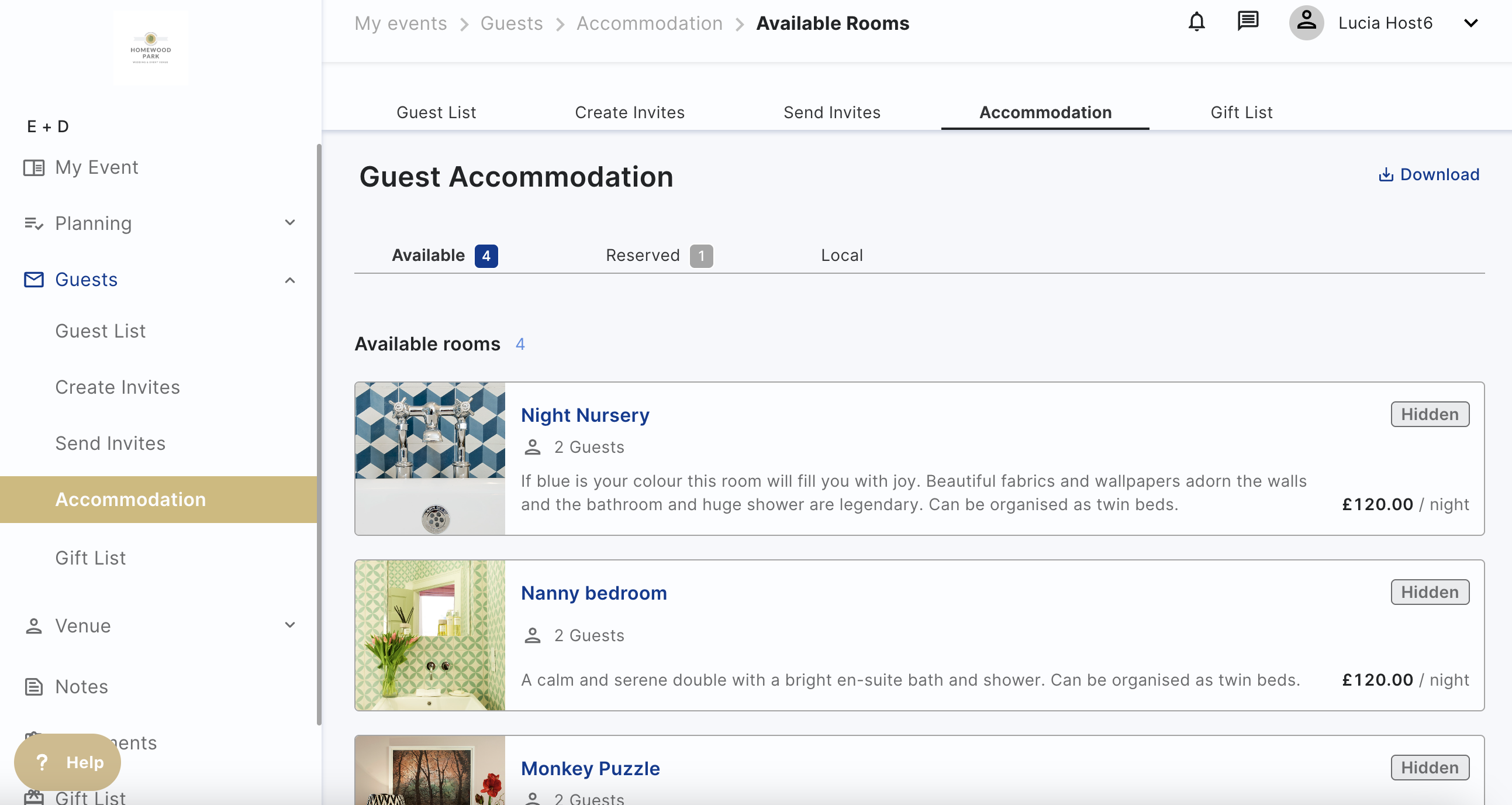
You will find three more tabs listed within the "Accommodation" section. These are "Rooms", "Reserved" & "Local":
- "Available" - Rooms your venue has made available, will appear under the "Rooms" tab. (You can choose if your guests see these, or if you want to allocate them).
- "Reserved" - Rooms you have booked for yourself or a guest will appear in the "Reserved" tab.
- "Local" - Links to local accommodation will appear in the "local" tab. (Your guests will also see these options).
Click on a room to assign it to a guest or to make it available to all guests
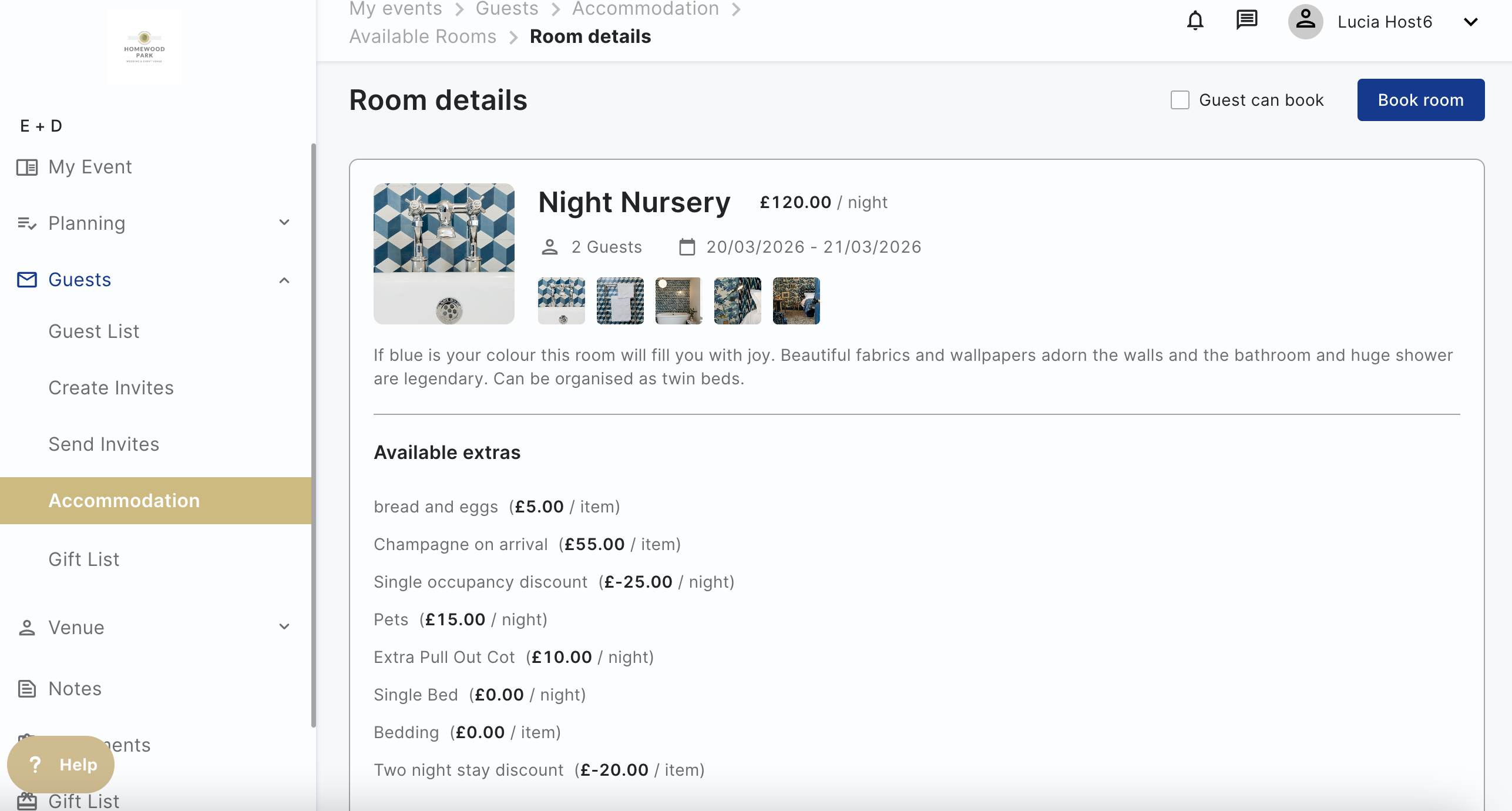
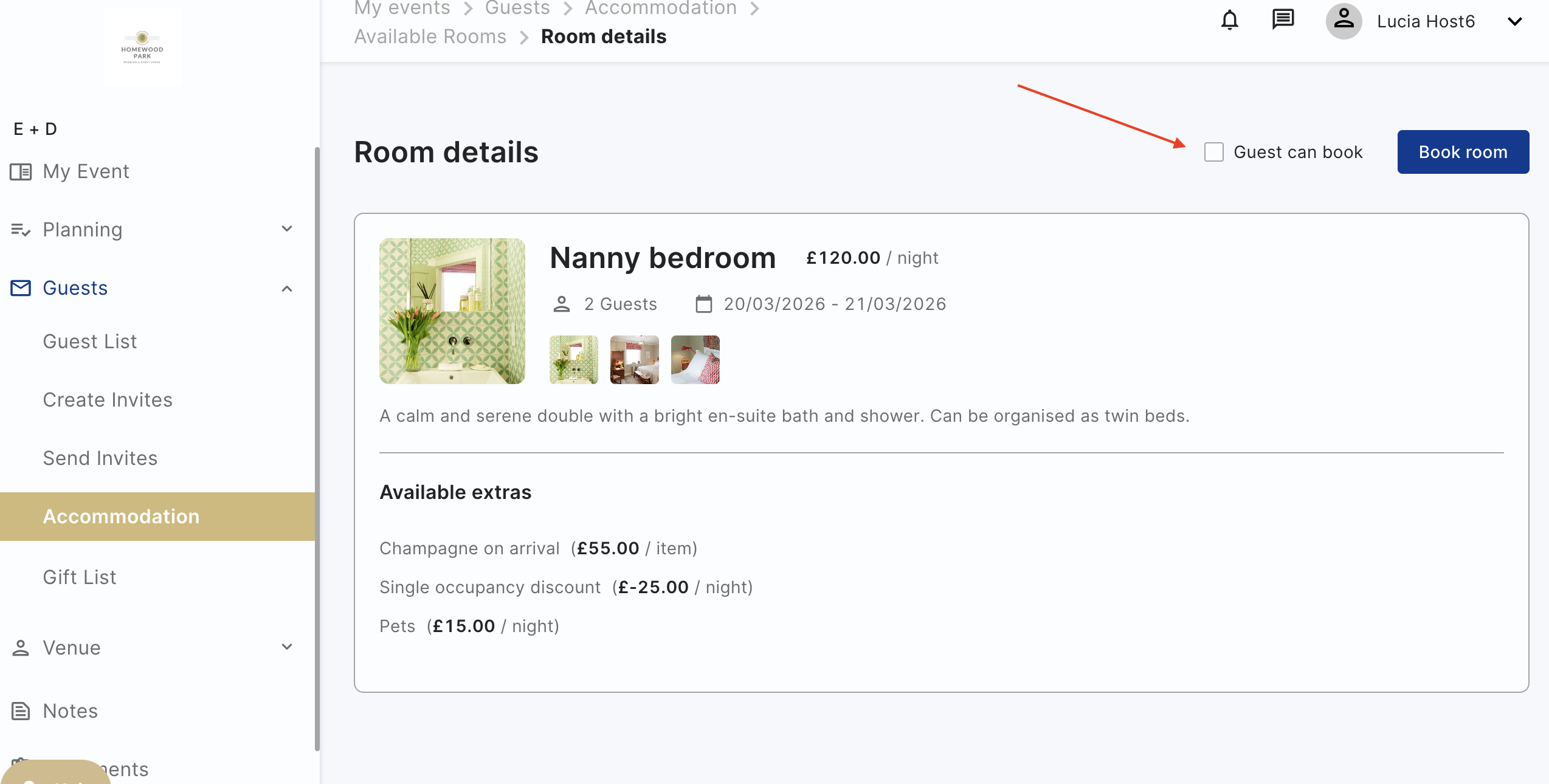
- "Visible to Guest" Toggle - Your guests will be able to book the room directly
- "Book room" - This is how you can book the room for either yourself or your guests.
To book a specific guest into a room click on "Book Room"
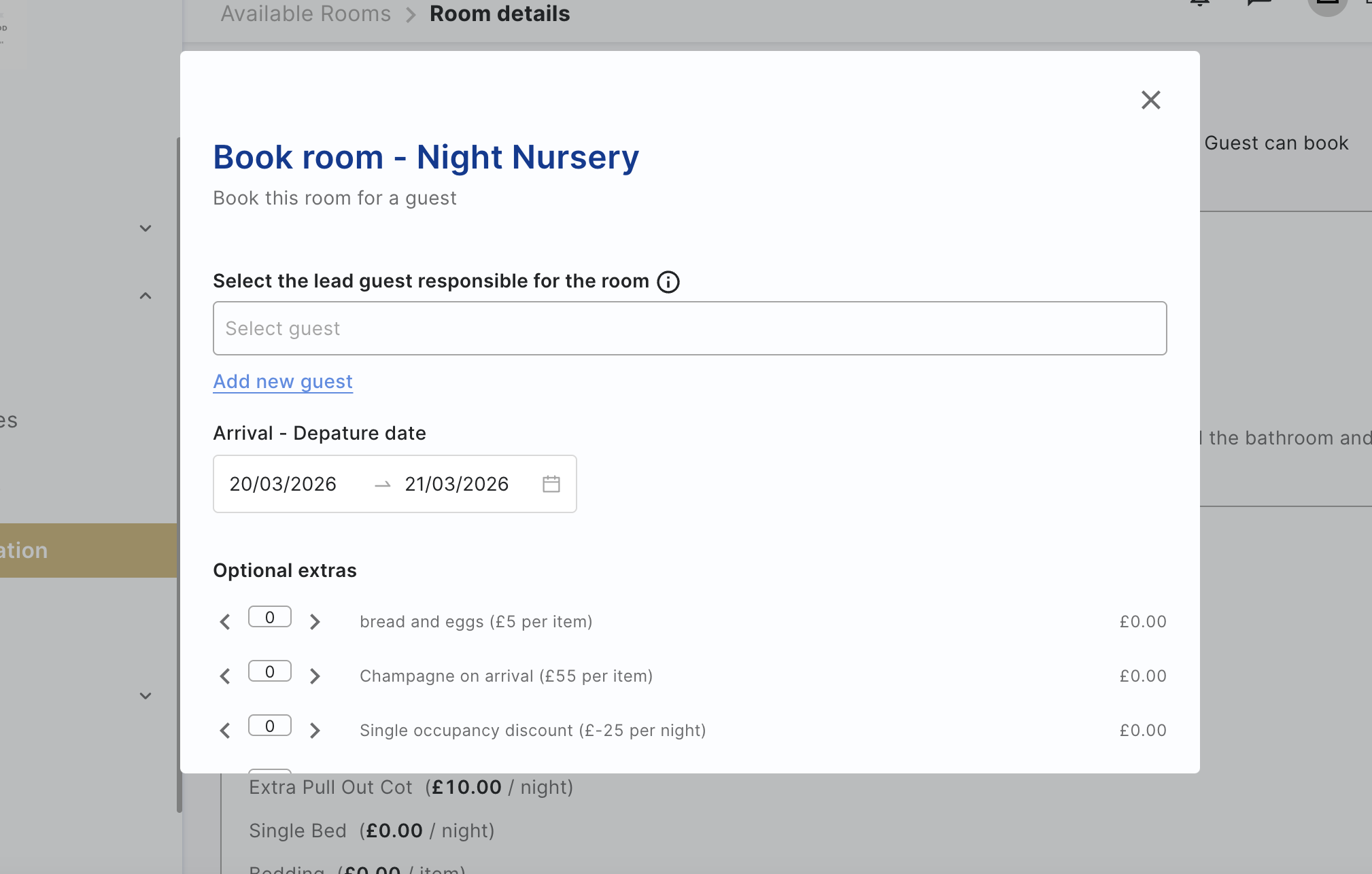
Select the guest from your guest list, add optional extras if there are any and confirm the booking.
The room will now be visible in the Reserved tab
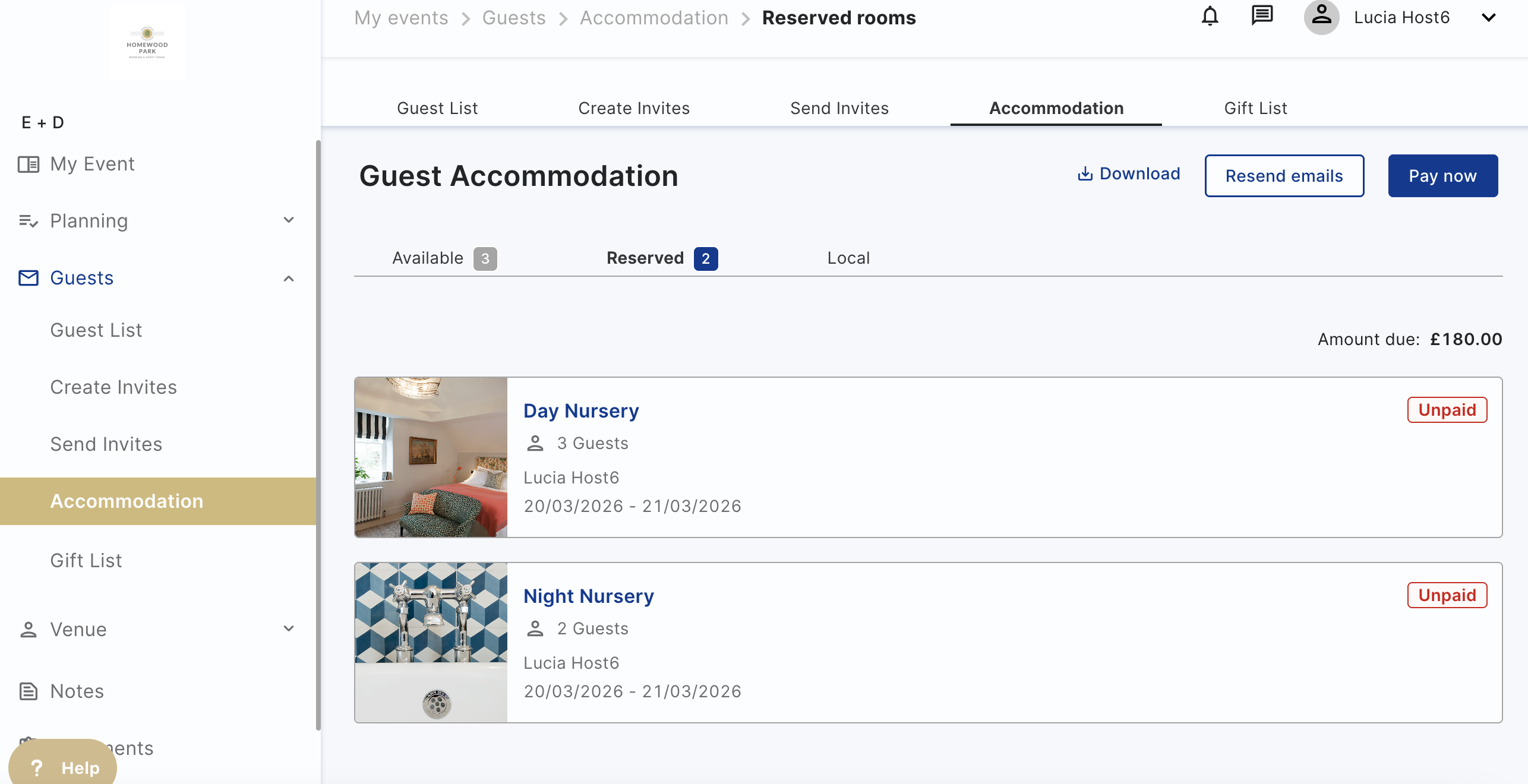
If you chose to notify the guest later you can go back to the reserved tabs and notify all your guests by clicking 'Resend Emails' which will send an email to your guests to confirm their bookings
How to make a room available/unavailable to guests
In Hostology, you can decide to make rooms "Visible to Guests".
- "Yes" - When the toggle says "yes", any guest you have invited to your event will be able to see and book this room on a first come first serve basis.
This allows you to decide if you want to allocate all the rooms at your event, or if you don't mind who stays where, you can allow your guests to book the available rooms.
To make a room available/unavailable to guests, click on a specific room to view its details. Then click on the toggle on the top right next to ‘visible to guest’.
How to cancel a room booking
To cancel a room booking, go to the reserved tab within the accommodation section. Then go to the room booking that you want to cancel, and click on ‘Cancel booking’ then confirm you want to cancel the booking by clicking ‘cancel booking’ on the pop up window.